


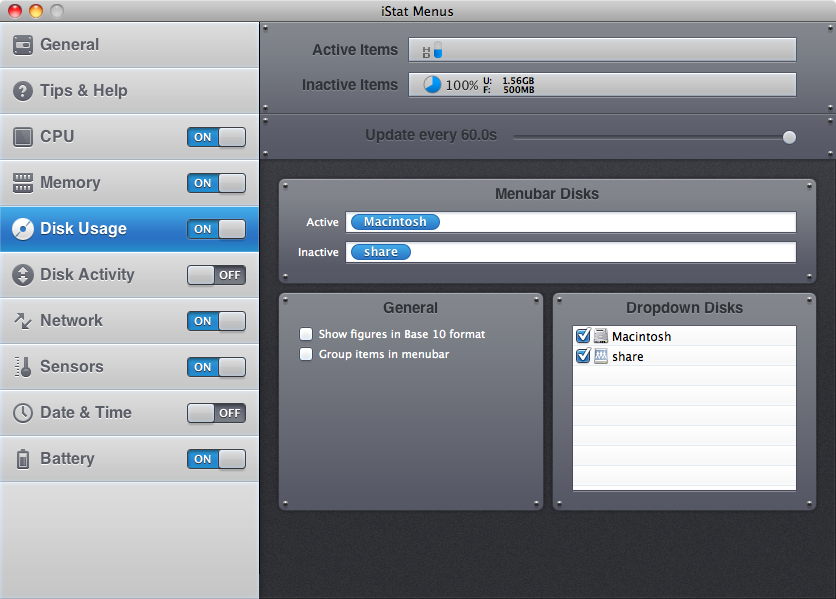
iStat Menus adds a series of monitors to OS X's menu bar making it possible to keep an eye on a range of aspects of your system from memory usages to disk activity. The real time CPU graphs show just how hard your processor is working as well as listing the top five processor intensive applications.
Information from any sensors in your Mac - such as temperatures gauges - can be displayed in the menu bar and you can control the speed of fans using the program. If you're using a MacBook, detailed information about the state of your battery is also displayed.
iStat Menus can also display details of network activity and hard drive information such as the amount of free space available on individual drives. Memory usage can also be displayed, and as with the processor information, the top five memory intensive programs are listed.
The menu bar, coupled with iStat Menus, is home to a wealth of information. He program can be customised to a high degree with a wide range of display modes available with the option of changing font style, colours and the size of individual panels.
Version 5.1 changes (Version History):
- Added support for 2015 MacBook Airs.
- Added support for 2015 13-inch MacBook Pro.
- Added ability to have different skin settings for light and dark menu bar modes in Yosemite.
- Added more memory details when using Memory Pressure mode.
- Added an option to show activity for individual disks in the menubar.
- Added an option to show activity for each disk in a fusion drive in the disks dropdown.
- Added ability to rename cities.
- Added an option to only show MB/s or Mb/s for bandwidth in the menubar.
- Added new hardware info to network connection submenus.
Verdict:
If there's anything you need to know about the state of your Mac, iStat Menus should be able to keep your informed.
Your Comments & Opinion
Get an in-depth technical report on your core PC hardware
Push your PC to its limits to see what it can handle
Detailed system information in a desktop sidebar
Use this extension to save system resources by suspending Chrome tabs
Optimise, clean and repair your PC
Read, write and control an NTFS-formatted partition from your Mac
Check the health of your disks and memory and detect common problems with your Mac
Monitor your PC's temperature, voltages, CPU frequency and more with this powerful stability checker
Free up valuable hard drive space with the capable cleanup tool
A versatile journaling and notebook tool to pop on your USB drive
A notepad/ to-do tool with cloud sync
Monitor file and folder changes on your hard drive in real time